NMI Merchant Portal Guide: Find What You Need Fast
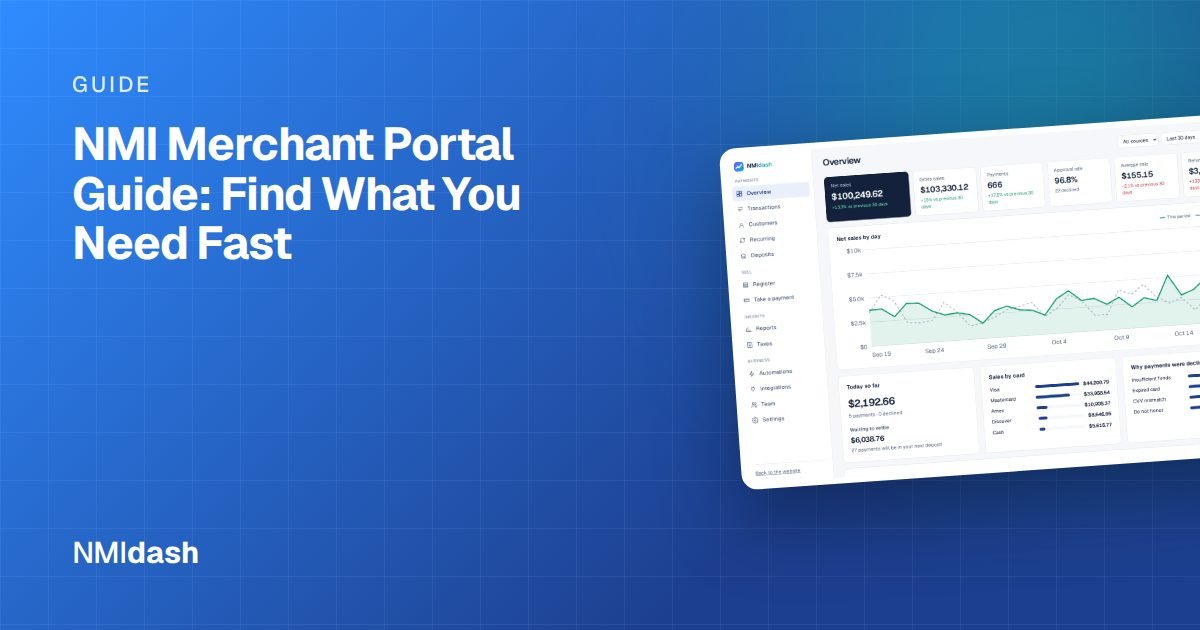
The NMI merchant portal is the web control panel for your NMI payment gateway. It is where you search transactions, issue refunds and voids, key in card payments through a virtual terminal, manage recurring billing and saved customers, check settled batches, and change gateway settings such as security keys and fraud rules.
If you signed up through a reseller or ISO, your portal may carry their brand and a different web address, but it is usually the same NMI gateway underneath. The layout and labels can vary slightly by reseller and by which features are switched on for your account, so use this guide as a map rather than a click-by-click script.
How to log in to the NMI merchant portal
Your login link comes from whoever set up your gateway account. If you went direct with NMI, it came from NMI. If you went through a payment provider, it came in their welcome email, and the page may show their logo instead of NMI's.
- Bookmark the exact login URL from your welcome email. Searching for "NMI login" can land you on a different reseller's page, where your username will not work.
- Turn on two-factor sign-in if your portal offers it. Anyone with your portal login can issue refunds.
- Locked out? Contact your reseller or the support contact listed in your merchant agreement. They manage your account and can reset access.
The main areas of the portal and what each one does
Most NMI portals are organized around the same core functions. The names below are typical, but your menu may group them differently.
| Area | What you use it for |
|---|---|
| Transaction reports or search | Find a payment by date, amount, last 4 digits of the card, customer name or order ID, then open it to see details, refund or void. |
| Virtual terminal | Key in a card payment by hand, for example when a customer pays over the phone. |
| Recurring | Create billing plans and subscriptions, and pause or cancel them. |
| Customer Vault | Save customer payment details as a token so you can charge them again without storing card numbers yourself. |
| Settlement or batch reports | See which transactions were settled in each batch and the batch totals. |
| Settings | Manage users, security keys, fraud and duplicate-checking rules, receipts and other gateway options. |
Some accounts also have add-on modules such as advanced fraud screening, electronic check (ACH) processing or invoicing. Whether you see them depends on what your reseller has enabled.
Finding a transaction quickly
The most common reason to open the portal is to look up a single payment, usually because a customer called. A few habits make this faster.
- Narrow the date range first. Large default ranges make searches slow and the results hard to scan.
- Search by what the customer can tell you. The last 4 digits of the card and the amount are usually enough to find the right payment.
- Check the status. A transaction can be approved but not yet settled, settled, declined, voided or refunded. The status tells you which action is available.
- Open the detail view. This shows the authorization code, the response from the processor, the AVS and CVV results, and the history of anything done to the transaction.
If you often look up payments from your phone, be aware that many gateway portals were designed for desktop screens. Search filters and detail pages can be awkward to use on a small display.
Refunds, voids and captures
From a transaction's detail page you can usually take one of three actions, depending on its status:
- Void cancels a transaction that has not settled yet. No money moves, and the charge drops off the customer's statement once their bank releases the hold.
- Refund returns money on a transaction that has already settled. You can usually refund the full amount or part of it.
- Capture completes an authorization-only transaction, which is common for businesses that authorize first and charge when an order ships.
Whether a user can do these depends on their permissions. If a button is missing, the user account you are signed in with may not have access, or the transaction may be in a status that does not allow that action.
A simpler view for day-to-day work
The NMI merchant portal is built to do everything the gateway can do, which also makes it dense. Many business owners only need a handful of things every day: what came in today, what is about to be deposited, who paid and who needs a refund.
If that sounds like you, NMIdash is a hosted dashboard that connects to your NMI gateway with an API key and shows your payments in a cleaner layout that works on a phone or a desktop browser. The Overview screen shows today and this week's totals and trends at a glance, and you can search every transaction, see deposits and settlements, view customers and recurring subscriptions, and run sales and sales tax reports. NMIdash is independent software that works with NMI gateways, including reseller-branded ones; it is not made or endorsed by NMI.
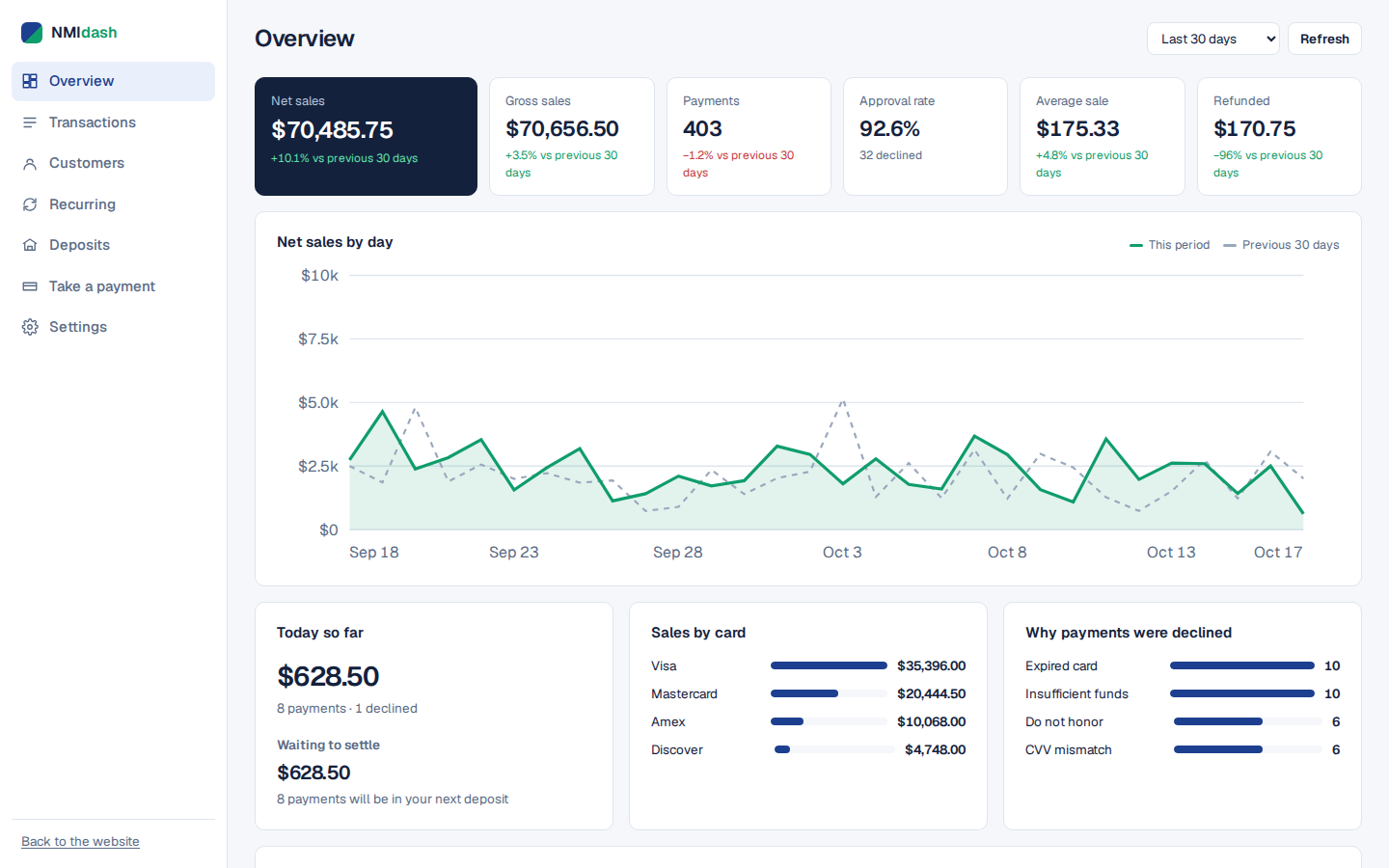
You keep your existing NMI account and portal. The dashboard reads your data through the key you create, and you can use a read-only key if you only want reporting.
Settings worth checking once
You do not need to visit settings often, but a quick review when you first get access can prevent problems later.
Users and permissions
Give each person their own login instead of sharing one. Limit refund rights to the people who actually need them, and remove users promptly when staff leave.
Security keys
Security keys let software such as your website, shopping cart or a dashboard talk to the gateway. Delete keys you no longer use, and never send a private key by email or paste it into a public place.
Fraud and duplicate rules
Many gateways let you set rules such as blocking duplicate charges within a short window, requiring CVV, or acting on AVS mismatches. Rules that are too strict can decline good customers, so change them carefully and watch your decline rate afterward.
Receipts and notifications
Check that customer receipts show your correct business name, phone number and refund policy. Clear receipts reduce "I don't recognize this charge" disputes.
Getting more out of the NMI merchant portal
The portal is the source of truth for your gateway. Learn where transaction search, refunds, batches and settings live, give each staff member their own login, and review your security keys and fraud rules every so often. For the questions you answer every day, such as how sales are trending, what is settling and who to refund, a simpler dashboard can save time.
To see how your NMI data would look in a cleaner view, explore the NMIdash live demo with sample data, then start a 7-day free trial when you are ready.
Frequently asked questions
Why does my NMI merchant portal have a different company's logo?
Many payment providers resell the NMI gateway under their own brand. The portal works the same way underneath, but the address, logo and some menu labels are set by your provider.
Can I use the NMI merchant portal on my phone?
You can open it in a mobile browser, but many portal screens are designed for desktop use. A mobile-friendly dashboard that reads your gateway data can be easier for quick checks.
Who do I contact if I can't log in?
Contact the company that set up your gateway account, either NMI directly or your reseller. They can reset your password or unlock your user.